

Custom variables are a powerful feature of Magento 2. Each Magento developer is aware of this, but only a few are taking advantage of it. Using Magento 2 Custom Variables, you can display any text and/or HTML from the admin to the front end. Using this website, the admin or merchant can easily update the content of the website without any modification in the code and especially without being dependent on the developer.
Where should we use Magento custom variables?
Use custom variables for information that is repeated on the website on different pages, e.g., phone number, email, etc.
How to add custom variables from Magento 2 admin?
Follow the below steps to add custom variables.
Step 1: Log in to Magento 2 admin website.
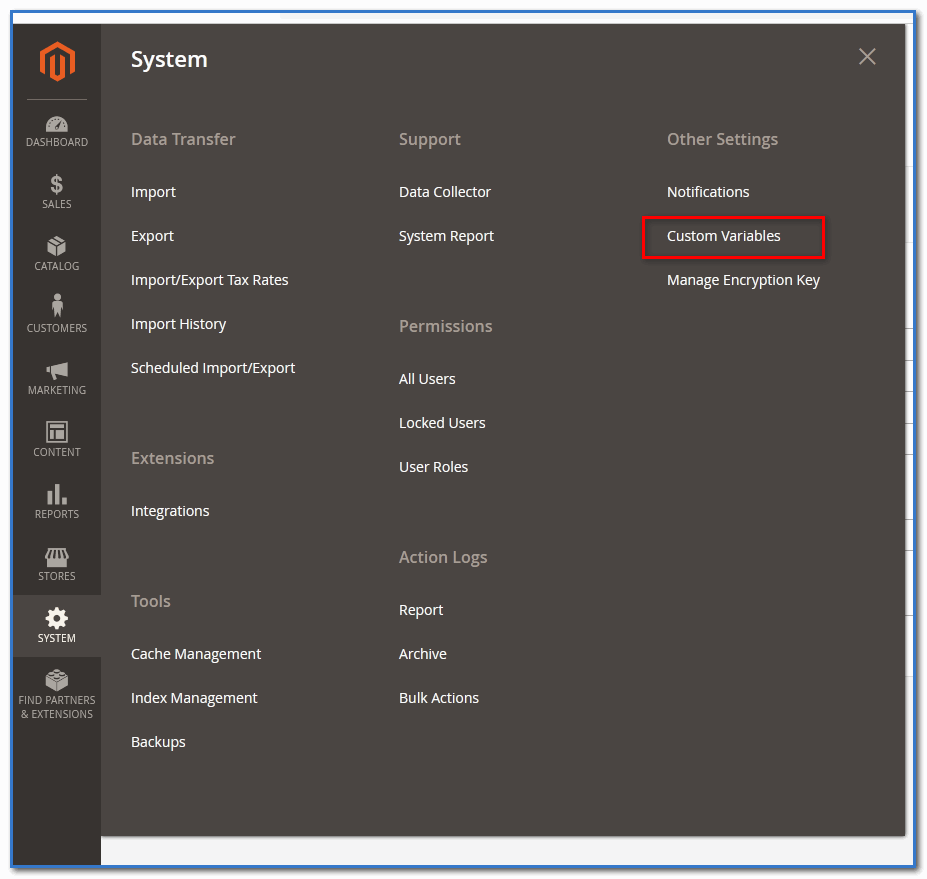
Step 2: Go to SYSTEM > Other Settings > Custom Variables
Step 3: Click on the “Add New Variable” button.
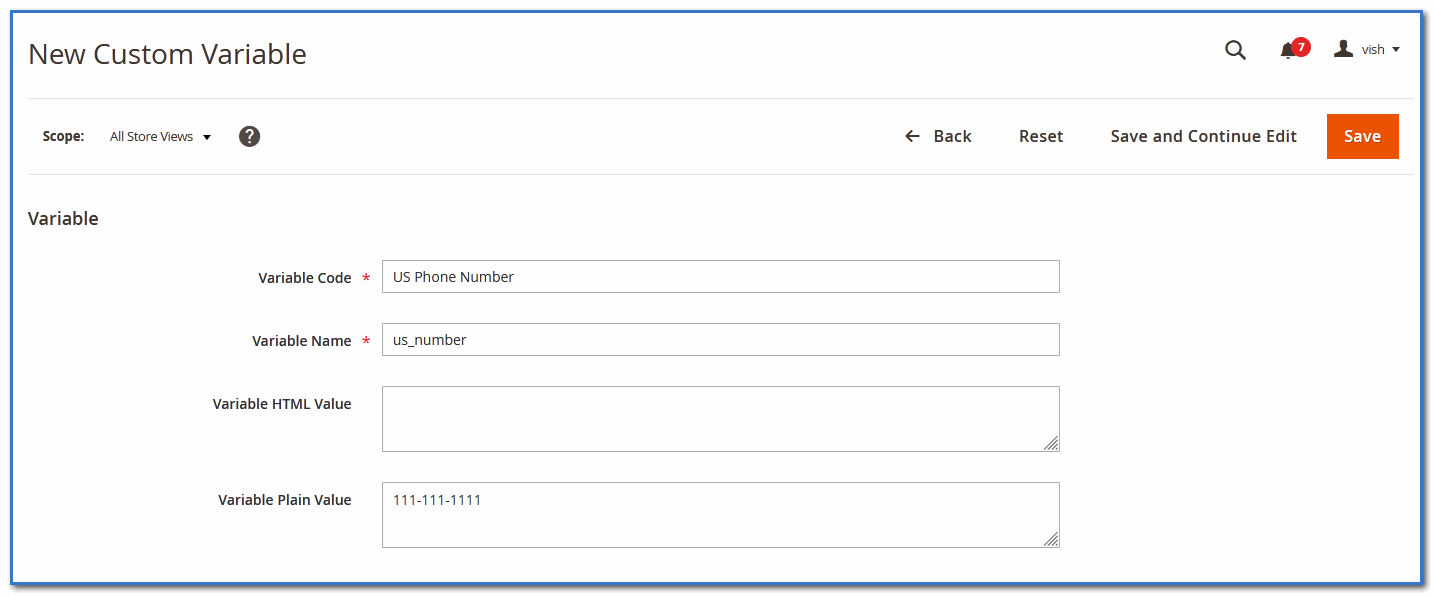
Step 4: Fill up the form and save it.
How to call the custom variable in the front-end phtml file of Magento 2?
Use the following script to call custom variables on any front-end page of the Magento 2 website.
<?php
namespace Vish\Demo\Block;

use Magento\Framework\View\Element\Template\Context;

class CustomVariablesDemo
{
	/** @var \Magento\Store\Model\StoreManagerInterface */
	protected $storeManager;

	/** @var \Magento\Variable\Model\Variable */
    protected $customVariable;

	/**
	 * @param Context $context
	 * @param \Magento\Store\Model\StoreManagerInterface $storeManager
	 * @param \Magento\Variable\Model\Variable $customVariable
	 **/
    public function __construct(
        Context $context,
		\Magento\Store\Model\StoreManagerInterface $storeManager,
        \Magento\Variable\Model\Variable $customVariable,
		array $data = []
    ) {
		$this->storeManager = $storeManager;
        $this->customVariable = $customVariable;
		parent::__construct($context, $data);
    }

	public function getCustomVariablesHtmlValue($code)
	{
		$storeId = $this->storeManager->getStore()->getStoreId();
	    return $this->customVariable->setStoreId($storeId)->loadByCode($code)->getHtmlValue();
	}

	public function getCustomVariablesPlainValue($code)
	{
		$storeId = $this->storeManager->getStore()->getStoreId();
	    return $this->customVariable->setStoreId($storeId)->loadByCode($code)->getPlainValue();
	}
}
After adding the above code on the block, you can now use the following code to get the value of custom variables in the PHTML file.
echo $block->getCustomVariablesHtmlValue(‘you_custom_variable_code’);
echo $block->getCustomVariablesPlainValue(‘you_custom_variable_code’);
You can get custom variable values directly on the phtml file using the objectmanager as shown below, but as per Magento coding standards, you should not use ObjectManager directly on any file.
$objectManager = \Magento\Framework\App\ObjectManager::getInstance();
$storeManager = $objectManager->get('\Magento\Store\Model\StoreManagerInterface');
$storeId = $storeManager->getStore()->getStoreId();

$objectManager->get('\Magento\Variable\Model\Variable')->setStoreId($storeId)->loadByCode('your_custom_variable_code')->getHtmlValue();
$objectManager->get('\Magento\Variable\Model\Variable')->setStoreId($storeId)->loadByCode('your_custom_variable_code')->getPlainValue();