

If you want to show configurable product selected options images on the cart and mini cart page in Magento 2, you can achieve this by adjusting a setting in the Magento 2 admin. By default, Magento 2 allows you to display simple product images of the configurable product on the cart and mini cart page.
Why Customize Product Images in Mini-Cart and Cart?
When customers choose a specific variant of a configurable product, it’s helpful to show the image of the selected variant in the mini-cart and cart. Here are a few reasons why simple product images should be displayed instead of configurable product images in Magento 2.
- Enhances the shopping experience by providing visual confirmation of the selected product.
- Reduces customer confusion and increases satisfaction.
- Improves the overall professionalism and polish of your e-commerce site.
How to display associated product images of configurable products on the cart in Magento 2
Following is step-by-step guide to do this from the Magento admin.
Step 1: Log in to the Magento 2 admin.
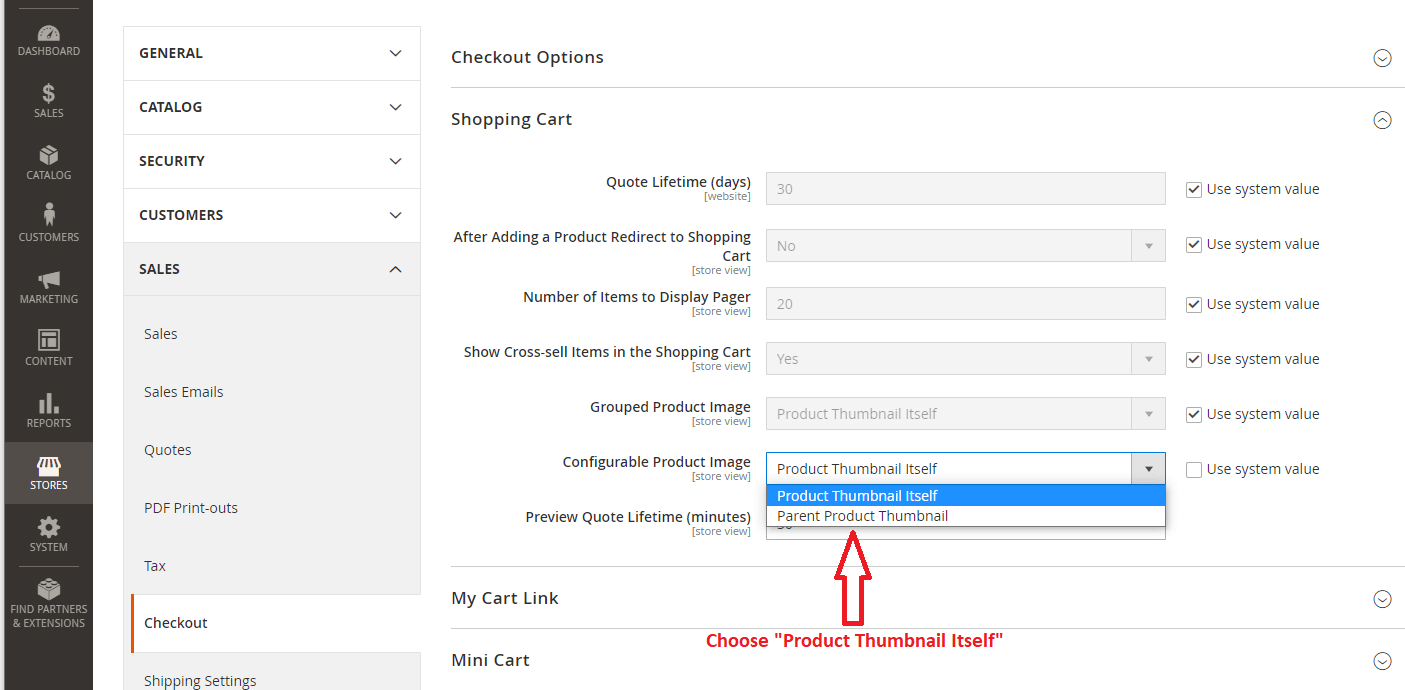
Step 2: Go to STORES > Configuration > SALES > Checkout
Step 3: Expand the “Shopping Cart” tab.
Step 4: Here, you can see the option “Configurable Product Image.“ Select “Product Thumbnail Itself” as a value and click on Save Config.
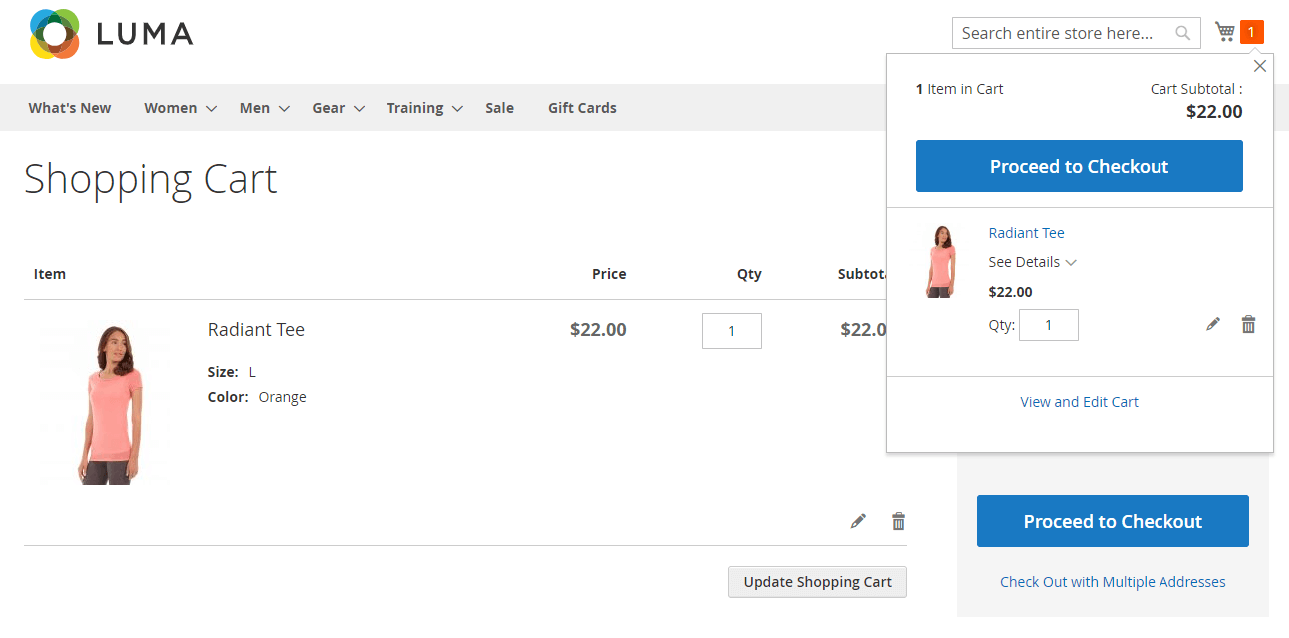
As per the above screenshot, you can see the image of the actual simple product when you select the configurable product options and add it to the cart.